
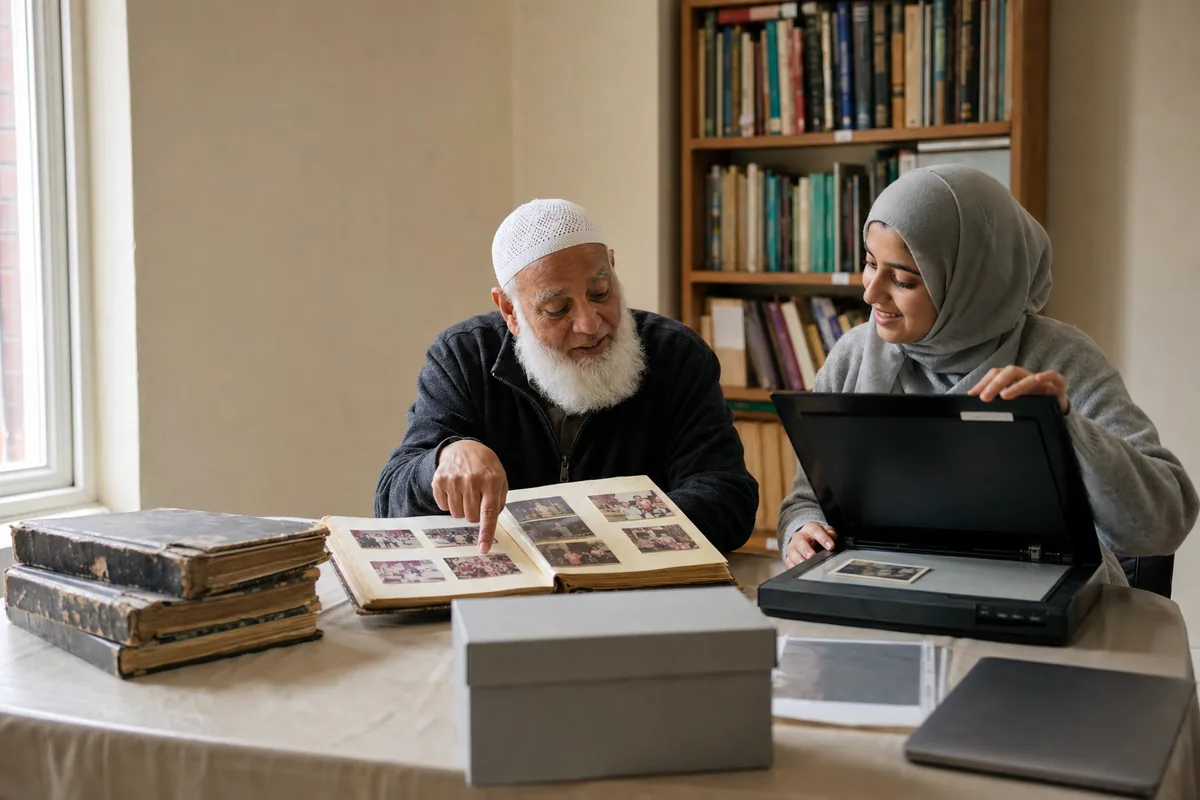
A community photo archive is built in four moves: protect the original prints, scan each one once at archival quality, record who is in every picture while the people who remember are still here, and keep at least three copies in different places that more than one trusted person can open.
Many mosques, churches, temples, gurdwaras and cultural associations hold 40 or 50 years of history in fading albums, shoeboxes and USB sticks nobody can find. The first gatherings, the day the building opened, weddings and festival dinners are all in there, and most of it exists as a single copy.
This guide is for the committee members and volunteers asked to do something about it, and it draws on guidance from national archives and conservation bodies. If you are organising a school's photos rather than a community's, the companion guide on making a digital yearbook from a year of event photos is a closer fit.
What is putting your old community photos at risk?
Paper and digital copies fail in different ways, and most collections face both:
- Colour prints fade even in the dark. The Canadian Conservation Institute explains that colour photographs from about 1940 to 1990 suffer "dark fading", so a print kept in a closed box can still turn too blue, magenta or yellow.
- Sticky "magnetic" albums harm the prints inside them. The U.S. National Archives lists self-stick albums with a clear cover among the materials to avoid when storing family papers and photos.
- Damp and heat speed up decay. Basements, hot lofts and cupboards beside water pipes are where collections usually end up, and they are the worst places for them.
- Hard drives fail, even well-managed ones. Backblaze, which runs more than 300,000 drives in data centres, reported that 1.36 percent of its hard drives failed during 2025. One external drive in the office is not a backup.
- USB sticks get lost, lent and written over. A stick in a former secretary's drawer is one unlabelled copy.
- The people who can name the faces are getting older. A scan without names is only half saved.
No scanner fixes that last risk, which is why captions get their own section below.
How to handle and store the original prints
Scanning does not replace the originals. Keep the prints and albums, and store them so they last as long as the files do.
Handle prints as little as possible, by the edges. The same Canadian Conservation Institute guidelines advise white cotton, nylon or vinyl gloves, sleeves of polyester or polyethylene, and photo corners instead of glue. Remove rubber bands and paper clips, and write captions on the sleeve, never on the print.
For the storage room, the U.S. National Archives' advice on storing family papers and photographs is to keep the temperature below 75°F (about 24°C) and relative humidity below 65 percent, and to keep collections out of damp basements, garages and hot attics and away from pipes, windows and roof leaks. An inside cupboard on a main floor, boxes off the ground, is usually safer than the store room.
Sticky magnetic albums: remove the photos or scan the pages?
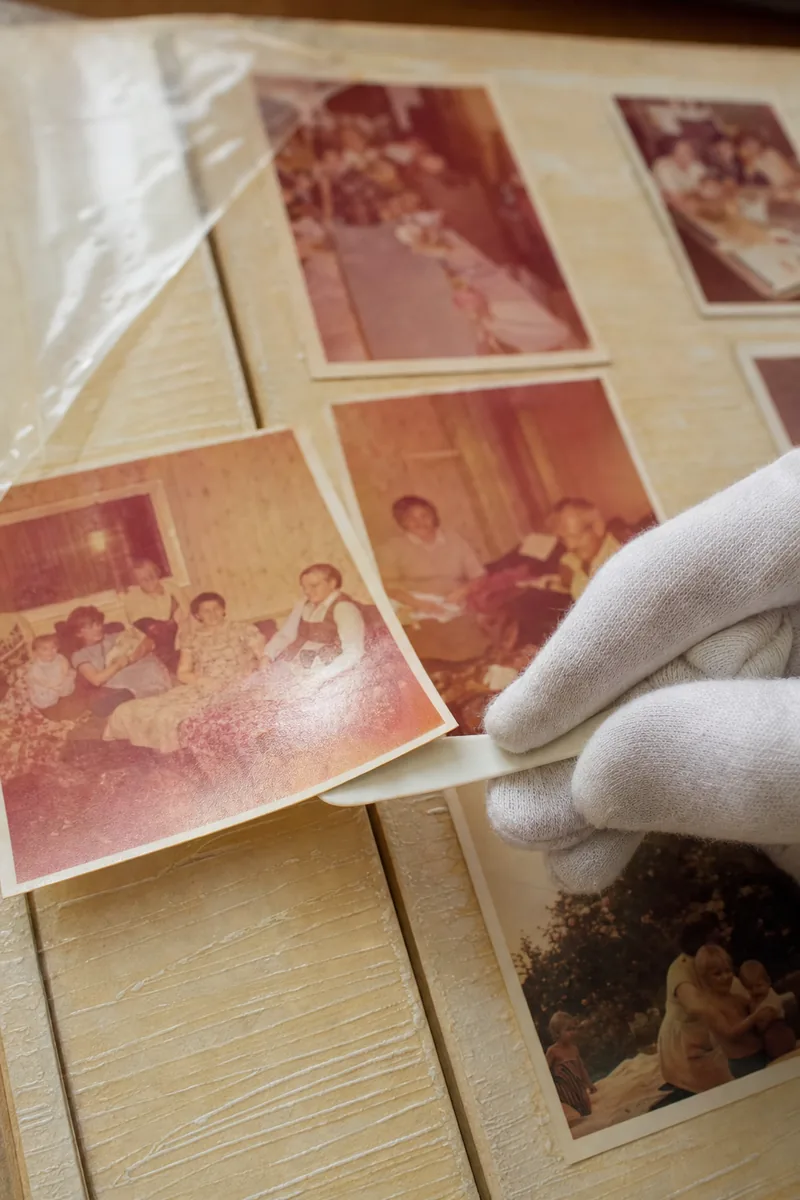
Self-adhesive albums, sold widely in the 1970s and 1980s, are the most common problem. The Library of Congress also advises avoiding "magnetic" or "no stick" albums in favour of plastic sleeves in ring binders. The glue hardens with age, and a print that looks loose can tear as it is lifted.
Scan every page as it is first, so the photos and handwritten notes stay together. Then test one corner: if a print comes away with gentle pressure from a thin plastic spatula or a length of dental floss slid underneath, move it into an archival sleeve. If it resists, stop and leave it in place.
Never force a stuck print
A torn print cannot be repaired by scanning it. If a photo will not lift easily, scan it in the album and ask a photograph conservator about the albums that matter most.
How to scan old photos: flatbed, phone app or scanning service
There are three realistic ways to digitize old photos, and most projects use more than one.
- A flatbed scanner gives the best quality and lets you choose the resolution. It is slower, but suits a small team working over several weekends.
- A phone scanning app is quick and free, and useful for an album page before anyone touches it or a family that will not let a print leave the house. Treat the results as access copies, not masters.
- A professional scanning service is worth paying for with fragile albums, negatives, slides and large batches. Ask how originals are handled, what resolution and format you get back, and how every original is returned.
For resolution, The National Archives in the UK sets a minimum of 600 ppi for photographs in its digitisation guidance. Ppi means pixels per inch: how much detail the scanner records from each inch of the print. Use 600 ppi as your floor for prints, and go higher for small prints, such as wallet-size portraits, if you may want to enlarge a face later.
Save one master file per photo and make every other copy from it. The same guidance describes TIFF as a lossless format most software can read, a safe choice for masters. Keep the TIFF as it came off the scanner, make JPEG copies for sharing and slideshows, and do any repair work on a copy.
Scan the back of any print with writing on it. A handwritten date or name is often the only caption you will ever get.
How to run a volunteer scanning day
A scanning day brings albums to one place for a few hours, so families never part with them for weeks. Libraries use the same idea: at the Indiana Album's Scan-A-Thon events, volunteers scan photos while the owners wait and then hand the originals back. A simple plan for your hall looks like this:
- Announce it early. Ask each family to bring one album or envelope, with notes on what they already know.
- Set up an intake table. Give each lender a number and a paper lending form, and keep their photos in one numbered envelope all day.
- Ask for permission in writing. The form says how the scans will be used, who can see them, and whether the family wants copies.
- Keep a clean handling table away from food and tea.
- Run two or three scanning stations, each with one trained volunteer and the same settings.
- Name files at the scanner with the lender number, so every file can be traced back to its family.
- Check before you return. A second volunteer opens a sample of each lender's files to confirm they are sharp and correctly named.
- Copy the files before anyone leaves. The day's scans go onto two separate drives, held by two different people, before the hall is locked.
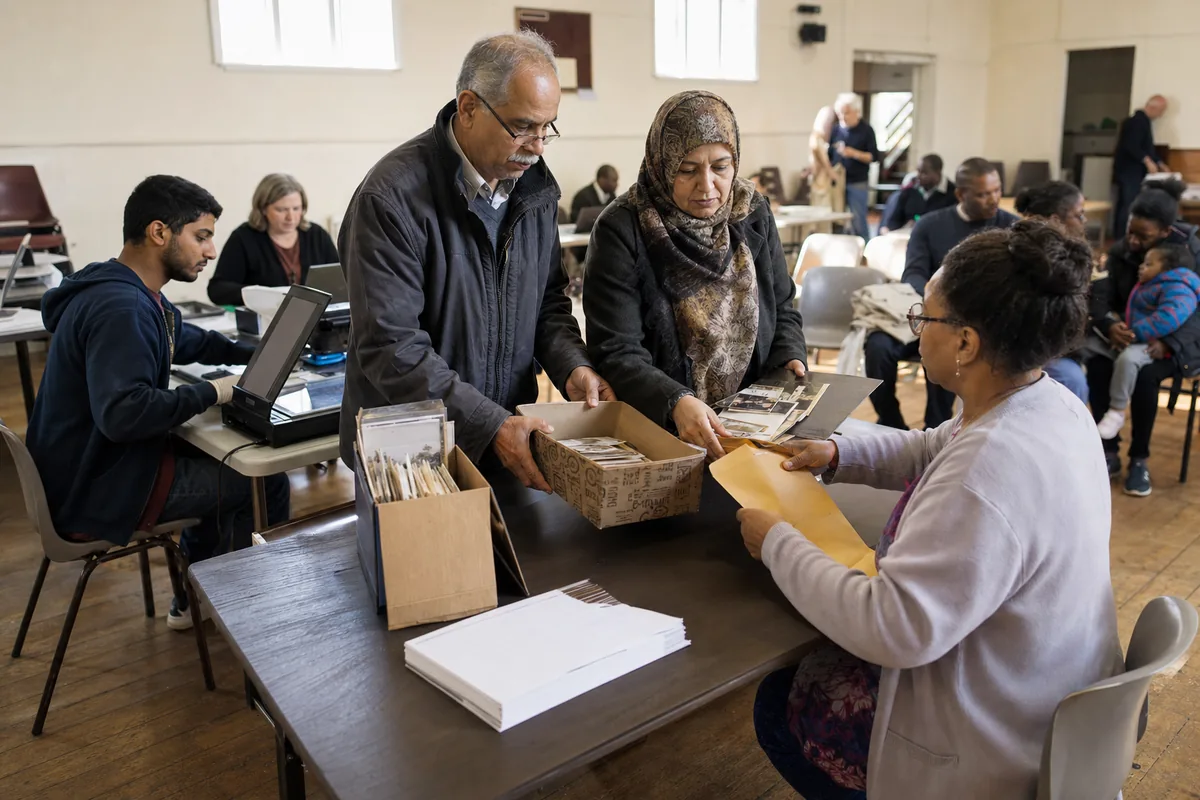
Three calm scanning days beat one crowded one. A rushed queue is where envelopes get mixed up and files go unnamed.
How to name, caption and identify faces in old photos
A file name tells you where a photo is. A caption tells you what it means. You need both.
The Library of Congress's personal digital archiving advice for photos is to give files descriptive names, tag them with the names of people and subjects, and use a clear folder structure. A pattern like 1987-06-14_eid-dinner_main-hall_L023_0042.tif works well: date first so files sort in order, then event, place, lender number and a running number.
Keep captions in one shared spreadsheet, with a row for each file and these columns:
- ✓File name
- ✓Date, or a best guess marked "about"
- ✓Event or occasion
- ✓Place
- ✓People, named left to right and row by row
- ✓Who identified them, and when
- ✓Source: lender number and album
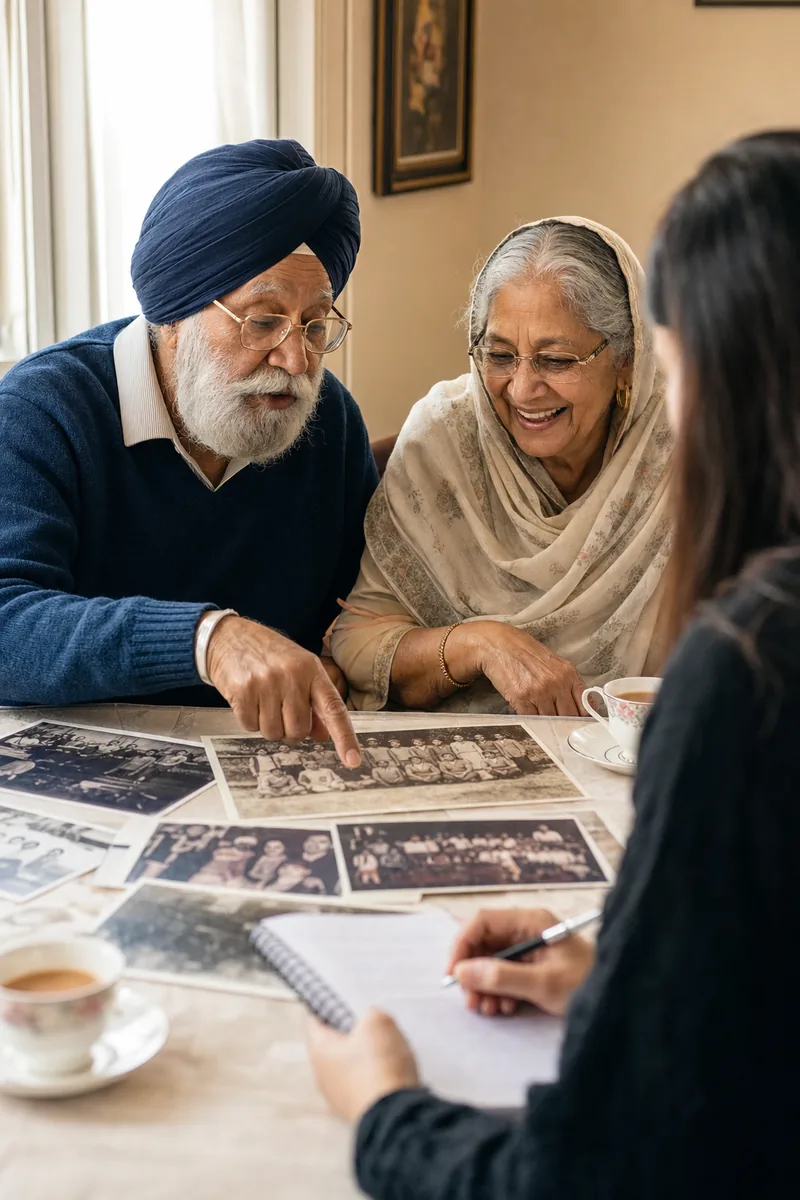
The quickest way to get names is an identification session. Print a batch of photos, or show them on a projector after Friday prayers, a Sunday service or a festival meal, seat the elders together with tea, and let them talk. One volunteer points and writes while another notes who said what. With permission, record the conversation too.
The stories that come out, such as who cooked for the first fundraising dinner, belong in the archive too. Write "not sure" rather than guessing: a wrong name gets repeated for decades, while a blank can still be filled.
Face grouping helps once a collection runs into thousands of scans. The software sorts photos by the people in them, so a volunteer can caption every photo of one person in one sitting. Lenzeit's MagicSort face grouping, on the Pro or Premium plan, does this for an uploaded batch.
Treat the groups as a starting point. Faded, small or side-on faces can be harder to match, and a person must confirm every name. Upload JPEG copies, never your masters, agree as a committee before community photos go to any outside service, and delete the event once the captions are done.
The 3-2-1 backup rule for a community photo archive
Scanning creates a new risk: a whole collection in one place. The U.S. Cybersecurity and Infrastructure Security Agency (CISA) describes the 3-2-1 backup rule: keep three copies of every important file, on two different types of storage, with one copy kept offsite.
For a mosque, church, temple or community centre, that can look like this:
- ✓Copy 1, the working archive: on the organisation's own computer or network drive, where volunteers add captions.
- ✓Copy 2, a second drive: an external hard drive updated after every scanning day, kept in another room or with a named trustee.
- ✓Copy 3, offsite: a cloud storage account or a drive at another member's home. The Library of Congress suggests keeping copies as far apart as practical, so one fire or flood cannot take them all.
The Library of Congress also advises checking your files at least once a year and copying them to new storage every five years. Put both dates in the committee calendar.
Two warnings. A cloud account must belong to the organisation, not one volunteer's personal email, or it leaves when they do. CISA also notes that cloud users give up some control and can get locked into one provider, so the cloud is one of your three copies, never the only one.
Photo delivery and sharing platforms are built to get pictures to people, not to be a permanent home for your community photo archive. Keep the masters and every backup in storage that the community itself controls.
Consent, sensitivity and who can see which photos
Old photos show people who never imagined their picture on a screen. Some have passed away, some were children then, and many communities have strong norms about photos of women, of prayer or of funerals. Decide the rules before anything is shared.
Legal rules and respectful practice are not the same thing. In the UK, for example, the Information Commissioner's Office states that UK GDPR applies only to information about living people, so photos of people who have died fall outside it. Families may still care deeply about how a parent appears, so ask them before such a photo goes on public display. This is general information, not legal advice, so check with a qualified adviser if unsure.
Most communities settle on three levels of access. Keepers hold the full master archive, including photos families asked to keep private. Members see a selected collection. The public sees a small set, cleared with the families shown.
Offer a simple way to ask for a photo to be taken down, and act on it quickly. The same questions come up at today's events, and the guide to interfaith event photography guidelines covers modesty and consent on the day itself.
Who holds the keys? Planning long-term access
A community archive can be lost in a handover as easily as in a fire: a volunteer moves away, and nobody knows the cloud password.
Write a one-page archive plan into the committee minutes. It names two or three keepers, says where each copy lives and which accounts hold the files, and states who takes over when a keeper steps down. Keep passwords in a shared password manager or a sealed envelope with a trustee, and review the plan at the yearly check.
Then think about the photos being taken now. Every Eid, Diwali, Christmas or Vaisakhi you photograph this year is part of the archive in 30 years. After each event, collect the full-resolution originals into the archive with the date and event name, so nobody has to run a rescue project like this again.
Getting those photos to the people in them is a separate job. Lenzeit handles that side: with selfie or access-code photo delivery, each attendee opens only the photos they appear in, with no app or account, while the community keeps its own originals and backups.
A community photo archive does not need a large budget. It needs originals kept cool and dry, one careful scan of each print, names written down while elders can still give them, three copies in different places, and a plan that outlives the volunteers who started it.