A clean second shooter workflow comes down to four habits: sync every camera to one clock before the first frame, give each shooter and each card its own file prefix, back up every card twice before anything is formatted, and correct any leftover time offset before you cull. Do those, and two cameras' files merge into one timeline in minutes instead of a long night.
Take a 10-hour wedding with a second shooter. Between you, that can mean four memory cards and something like 12,000 frames. When the clocks disagree and both bodies use the same file counter, the merge turns into hand sorting, missing files and duplicates the client notices before you do.
The steps below follow the order a lead photographer runs them, and they fit any wedding photography workflow or multi-shooter event, from the clock sync to the contract.
Before the event: one clock and one naming plan
Sync every camera body to the same clock
Your editing software sorts a merged shoot by capture time, the date and time the camera writes into each file's EXIF data (the technical information stored inside every photo). If your camera is two minutes fast and your second shooter's is four minutes slow, the entrance from their angle lands after the first dance from yours.
Fstoppers contributor Derrick Ruf calls it the worst possible start to a cull: importing twelve hours of wedding images, then finding the second shooter's camera was set to a completely different time. His advice is to sync before the day starts. There are two simple ways to do it.
- From a phone. Many current bodies can take the time from a paired phone. Nikon's SnapBridge app, for example, has a Synchronize clock setting in its Connect tab. Do the same on every body, including the second shooter's backup camera.
- By hand against one reference. Open a clock that shows seconds on one phone and set every body to it, one after the other, in the same few minutes.
Then shoot a reference frame: every body photographs the same phone clock showing seconds. If a clock drifts or a battery swap resets the date, that one frame gives you the exact offset later. Check the time zone too, because a camera still on home time at a destination wedding will be hours out.
Give each shooter, body and card its own name
Cameras name files with a short prefix and a counter. A Nikon D850, for example, names files DSC_ plus a four-digit number, and its File naming menu replaces "DSC" with three letters you choose. Check your own camera's manual for the same kind of setting. A four-digit counter only reaches 9999, so with two or three bodies on a long day, matching file names are close to certain. If two files with the same name are copied into one folder, one can overwrite the other.
A naming plan that holds up:
- One prefix per body. For example LDA for the lead's main body, LDB for the lead's second body and SSA for the second shooter.
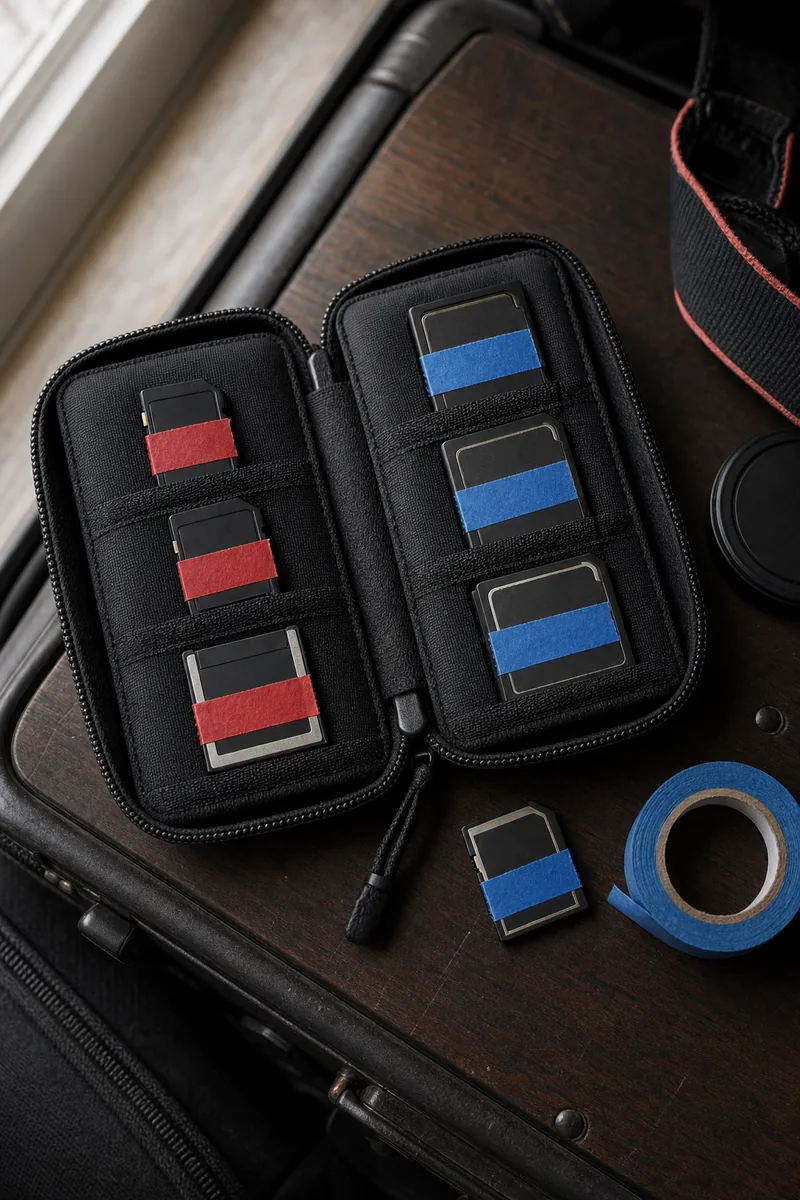
- One label per card. Number every card and mark whose it is. ProGrade Digital recommends labelling every card before the shoot so you know which camera it belongs to, and coloured tape (one colour per shooter) does the job.
- One folder per card at ingest. For example
2026-10-12_Khan-Walima/SSA_card2. The folder records where every file came from, even after renaming.
Card handling on the day: the 3-2-1 rule for event shooters
The backup rule most data guides point to is 3-2-1. The US Cybersecurity and Infrastructure Security Agency (CISA) sets it out in its paper on data backup options: keep three copies of any important file (one primary and two backups), on two different types of media, with one copy stored offsite.
For an event, that means a working copy on your laptop, a second on a separate external drive, and a third in cloud storage or at home. The cards stay untouched until two of those copies exist and you have opened a sample from each.
If a body has two card slots, set the second slot to record a backup of every frame, so your second shooter can hand you one card and keep the other. ProGrade also suggests copying cards during natural breaks rather than waiting for the end of the day.
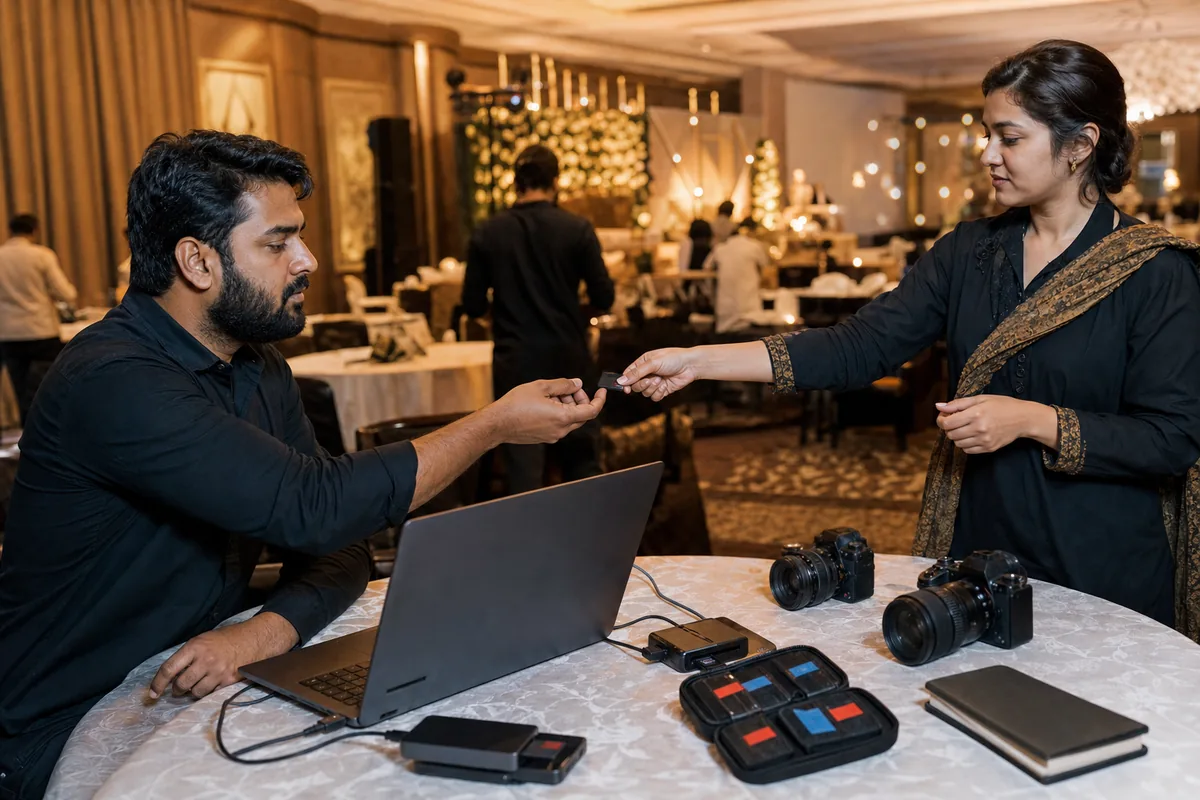
Decide the handover before the event, not in the car park. Fstoppers' Alex Cooke notes that some leads want the cards at the end of the night while others prefer the second shooter to keep them and transfer files later. A physical handover is fastest. A later cloud transfer keeps the originals with the person who shot them, so set a deadline and ask for full-resolution raw files, not edited exports.
At outdoor venues, keep full cards in a closed case, never loose in a pocket. Our guide to race day photography in rain and dust covers keeping gear working when the weather turns.
No card gets formatted early
Do not format or reuse any card, yours or your second shooter's, until its files exist in at least two other places and you have checked them. When you do reuse it, format it in the camera that will use it.
The second shooter workflow at ingest, step by step
Each step depends on the one before it, so run this sequence for every card from both shooters before you cull.
- Copy each card into its own folder, named by shooter and card number. Copy, do not move.
- Make the second copy in the same pass. Lightroom Classic's import window has a Make A Second Copy To option in the File Handling panel. Adobe notes this is a one-time backup and not a replacement for regular backups.
- Confirm the counts. The number of files on each card should match the number in its folder. Offload software with checksum checking, such as the ShotPut Pro example ProGrade mentions, does this for you.
- Rename with the shooter prefix if a camera did not add it. Lightroom's Rename Files panel accepts custom text, so SSA plus the original file name works.
- Skip suspected duplicates, explained in the next section.
- Correct the time offset for each body, using its reference frame.
- Sort the whole shoot by capture time and check two or three moments you both covered, such as the entrance or the ring exchange. If the frames interleave correctly, the timeline is right.
Fixing clock drift in Lightroom Classic
Select every photo from one body, which is easy when each body has its own prefix or folder. Make the reference frame the active photo, then choose Metadata > Edit Capture Time. Adobe's Lightroom Classic metadata guide explains that with several photos selected in Grid view, Lightroom changes the active photo by the adjustment you set and shifts every other selected photo by the same amount.
Choose "Adjust to a specified date and time" and type the time the phone showed in the reference frame. "Shift by set number of hours" is for time zone fixes. Two cautions from the same guide: Ctrl+Z or Command+Z does not undo the change (use Metadata > Revert Capture Time to Original), and the new time is only saved into raw files if you turn that option on in Catalog Settings.
Fixing clock drift in Capture One
Capture One Pro 23 (version 16.0) and later can change the capture time of one image or a batch. Select the photos, right-click and choose Change Capture Time. With one image selected you set its exact time. With several, Capture One applies an offset based on the primary variant, so make the reference frame the primary. Turn on Image > Edit All Selected Variants first, or only one photo changes.
One limit matters if you use two programs. Capture One says the XMP sidecar is not changed, so the new time shows in Capture One and in exported files but not in other software reading the original raw file. Correct the time in the program you cull in.
Duplicates: what to delete and what to keep
Two kinds of "duplicate" appear in a merged shoot, and only one of them should be deleted.
True duplicates are identical files: the backup slot's copy imported next to the main slot's, a card imported twice, or a cloud upload that overlaps cards already handed over. Lightroom Classic treats a file as a suspected duplicate when it has the same original file name, the same EXIF capture date and time, and the same file size. Tick "Don't Import Suspected Duplicates" in the import window and it skips them.
Near-duplicates are different. Two shooters photographing the same moment from two angles, or a burst of ten frames of the same smile, are not errors. Keep the strongest frame from each angle and cull the rest as you would for a single shooter.
For delivery, the merge can be one step. In Lenzeit, an event photo delivery platform, you upload both shooters' finished photos into the same event in one bulk upload, and a ZIP file works too.
On Pro or Premium, MagicSort™ removes duplicates and groups every photo by the person in it, whichever camera took it. Each guest then finds their own photos with a selfie or an access code, with no app and no account.
MagicSort does not replace your cull, and it cannot repair a wrong capture time, so do the ingest steps first. On cost, one credit processes one photo. Freemium starts with 100 free credits at $0.02 per photo, and Pro at $9.99 a month lowers that to $0.01 and adds MagicSort. The full breakdown is on the Lenzeit pricing page.
Image ownership, credits and portfolio use: put it in writing
The merge raises a question no software answers: whose photos are these? Unless your agreement says otherwise, often the second shooter's.
The US Copyright Office's circular on works made for hire explains that ordinarily the author is the person who actually created the work. A commissioned work only counts as "made for hire" if it falls into one of nine listed categories and both sides sign a written agreement saying so. An employee working within their job is a different case. Laws differ by country, so treat this as general information, not legal advice, and ask a lawyer to check your agreement.
Terms most leads put in writing with a second shooter:
- Ownership. Whether copyright is assigned to you, or stays with the second shooter with a licence for you and your client to use the images.
- File handover. Raw files, every frame or a light cull, and by what date.
- Portfolio use. Whether the second shooter may use images, which ones, and after what waiting period, such as after the client has their gallery.
- Social media. No posting before you deliver, and no tagging the couple without permission.
- Credit. How the second shooter is named when you publish their images, if at all.
- Private events. No sharing at all for events where the family or guests have asked for privacy.
Cooke's Fstoppers piece makes the same point from the other side: not every lead allows portfolio use, so agree it before the event.
Credits inside a shared gallery need a different answer. Most delivery galleries show photos without a per-photographer credit, and Lenzeit has no photographer credit tag. Keep the credit in the files instead: the prefix from your naming plan, plus the IPTC Creator and Copyright fields, which Lightroom Classic can fill for a whole selection with a metadata preset. The second shooter's right to show the work comes from your agreement, not the gallery.
A checklist for your next two-shooter event
Print this and keep it in the card wallet.
- ✓Every body synced to one clock, time zone checked, reference frame shot
- ✓A file prefix per body and colour-coded cards per shooter
- ✓Ownership, portfolio, credit and handover terms signed
- ✓Second card slot set to backup where the body has one
- ✓Two verified copies before any card is formatted, a third offsite
- ✓One folder per card, file counts checked
- ✓Time offset fixed per body, whole shoot sorted by capture time
- ✓Suspected duplicates skipped, near-duplicates culled by hand
A reliable second shooter workflow is mostly decided before the first frame: one clock, one naming plan, two verified copies and a signed agreement. Get those right and the merge is the easy part.